Friday, 1 March 2019

iPod Touch Disabled for 24 Million Minutes? Fix It Here!


1. Fix a Disabled iPod touch via iCloud

This is the method you should use when you don’t have access to your iTunes. This method will reset your iPod touch if Find My iPod was enabled in iCloud and your iPod was registered with your Apple ID before it got disabled. You will need a working wireless network for this to work.

Follow these instructions to fix your disabled iPod touch:

Step 1. Use any other device (iDevice, Phone, Mac, Windows PC, etc.) and visit icloud.com/#find via a web browser. You can also use Find My iPhone app on any iDevice for this purpose.

Step 2. Log in with the same Apple ID that is associated with your disabled iPod touch.


Step 3. After successfully logging in, navigate to All Devices section and find and select your iPod touch from the list.


Step 4. Now click the Erase iPod and then confirm your action to proceed. The reset process will begin.


3. Reset a Disabled iPod touch with iTunes

If you have access to your computer, then it is recommended that you use this method to reset a disabled iPod touch and fix the problem. Here is steps on “iPod touch Disabled” fix:

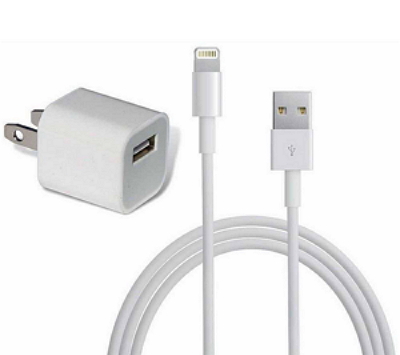
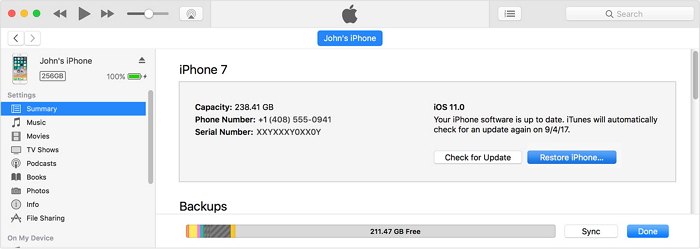
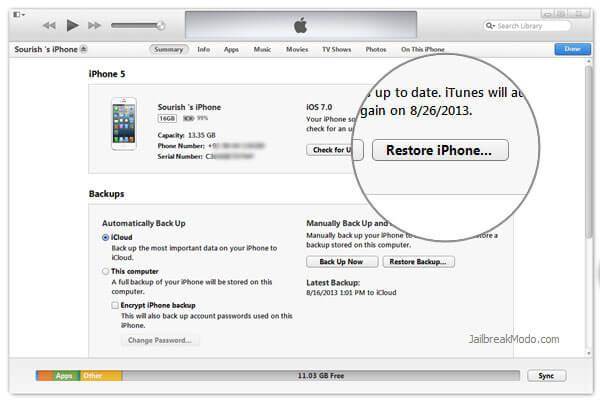
Step 1. Connect your disabled iPod touch to your computer. Then launch iTunes and select your iPod touch.

Step 2. Now create a backup of your iPod via the ‘Back Up Now’ option. When creating a local backup, make sure that ‘This Computer’ is selected. This is an essential step if you want to restore your data after resetting the iPod.
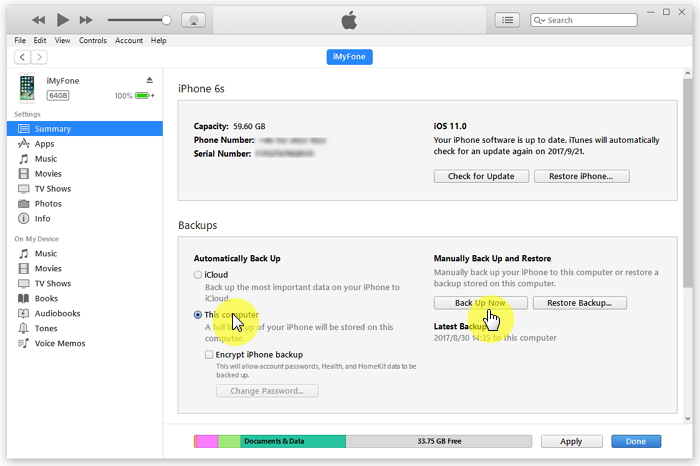


Step 3. Once the backup process is finished, click the ‘Restore iPod’ option to start the reset process.


Also Read:


iPhone Could Not be Restored Can be Easily Solved >>


Easily Fix “iTunes Was Not Installed Correctly Error 7” >>
4. iPod touch is Disabled? Fix This in DFU Mode

If none of the above mentioned methods worked, then you should give this method a try. DFU mode is just like the Recovery Mode of an iDevice. A lot of users claimed to have succeeded with this method when other methods failed. You will need to have iTunes installed on your computer for this method to work. However, your disabled iPod touch does not need to be synced with iTunes.

Follow these instructions to fix “iPod touch Disabled” issue:

Step 1. Turn off your iPod touch by using the Power button and sliding the Power slider when it is prompted.


Step 2. Connect the iPod touch to your computer when it is completely off and launch iTunes.

Step 3. Now press the Power button and Home button and hold them for a few seconds until iTunes reports that it has detected your iPod touch in Recovery mode.


Step 4. Now click the Restore option to start the restore process. The restore process may take some time to complete.Also Read:Create Boomerang from Existing Videos on Android/iPhone 2019
Also Read:Rotate Video on Facebook 2019


Step 5. Once the process is completed, you will need to set up your iPod touch. When setting it up, you can use the backup (if it exists) to restore your data. If there is no backup, then all your existing data will be lost.

Genuine Review of Mobikin iPhone Data Eraser 2019


Mobikin iPhone data eraser for iOS is one of the top Apple device erasers on the market. If provides you with an easy to use package that erases any data you want gone with 0% recoverability.

If you have decided to give away your iPhone, you need to protect your data. This is because your iPhone stores everything you do on your device like Safari browsing history, passwords, banking info and a lot more are stored on your device in caches, logs etc. You don’t want all this information out there when you sell or give away you iPhone. Mobikin iPhone data eraser helps you erase all this data permanently.


Genuine Review of Mobikin iPhone Data Eraser

Mobikin has great features that give you access to market leading data erasure. They are:


Clear all data on your device with one click


Restore your device with 0% recoverability


3 different security levels that meet your erasing needs

Pros

There are several advantages to using Mobikin iPhone data eraser. They include the following:


Save time with a one-click data erasing option


Protect your data from the wrong hands by secure data destruction and overwriting


Freedom to select what kind of data you want to erase


Permanently delete data you think you have previously deleted

Cons

In spite of how great Mobikin is, it still has some cons. They include the following:


No feature for erasing data by 3rd-party apps, like messages, photos, videos, or documents, etc.


No feature for erasure of data fragments kept in 3rd-party apps.


No way to back up iPhone photos and large files to computer or external hard drive.


Its official website has not been updated for a long time. Its Guide page and What’s New page are blank. The latest review on its website is on July 24th, 2017. It’s suspected that the eraser itself has not been updated or maintained for a long time.
Best Alternative to Mobikin iPhone Data Eraser

Actually, it’s not recommended to purchase a program which is not updated frequently. We all know that no app is 100% perfect. Instead of Mobikin iPhone Data Eraser, here we introduce you two other iPhone cleaning and data erasing tools that you can get your hands on. They are the best alternatives to Mobikin and provide you with data erasing prowess similar and even superior in some cases to Mobikin.Sponsor ads:

Gihosoft Free iPhone Data Recovery:https://www.gihosoft.com/iphone-data-recovery-free.html

Gihosoft iPhone Data Recovery Free

Free iPhone Data Recovery Software for Windows/Mac

Recover up to 12+ types of files, including contacts, SMS, photos, WhatsApp, Viber, notes, etc.

Restore lost data from iOS devices directly or from iTunes and iCloud backup

Recover iPhone data lost due to iOS upgrade/jailbreak, accidental deletion, device lost or broken

Support all the latest iPhone, iPad and iPod Touch

Both Free and Pro version.

If you lost data after you updated to a new iPhone, you can always use Gihosoft iPhone Data Recovery to get the data back from the old iPhone or backup.You may also like: iphonerecovery.com

If you use android phones, please choose Gihosoft Android Data Recovery.

With Gihosoft Android Data Recovery, no longer afraid of data loss!

Must read:Youtube video downloader for pc

Gihosoft RePicvid Free Photo Recovery Software provides a free photo recovery software for windows to help users recover the deleted or lost photo for free.

Jihosoft Android Data Recovery: the best Android Data Recovery software for Windows and Mac to recover deleted contacts, messages, photos, videos, WhatsApp and etc from Android devices.Tips:How to transfer messages from iPhone to iPhone

jihosoft Free iPhone Data Recovery

Apple Music Deleted My Music from iPhone, Re-download Music on iPhone


Apple Music Deleted My Music from iPhone, Re-download Music on iPhone

In the past, when you lose or delete your music by mistake on your iPhone you’d be in serious trouble. Fortunately, Apple now has a feature that allows you re-download all missing or lost music purchased from iTunes for free. This is a free service but it’s only applicable to music purchased from the iTunes store. This feature lets you re-download songs, album covers, albums, etc. directly to your iPhone at zero cost. Follow the steps below to re-download missing music for free:

Step 1. Login with the Apple ID you used for the music purchase on your iPhone. Navigate to "Settings > iTunes & App Store> Apple ID".

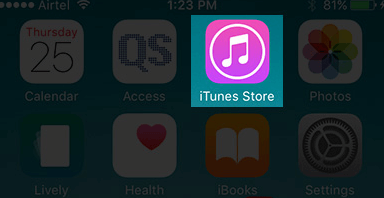
Step 2. Click on the iTunes Store app to open it.


Step 3. At the bottom right of the screen, hit the "More" button.

Step 4. Click on "Purchased".


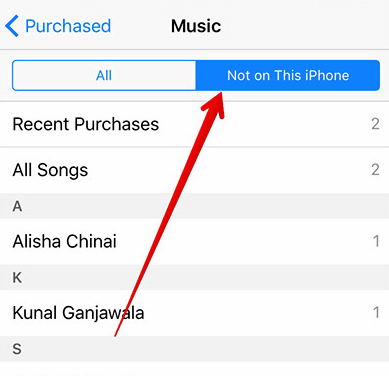
Step 5. Click on "Music".


Step 6. Hit the "Not on This iPhone" toggle.


Step 7. A list of purchases will be displayed. Look for the ones you want to re-download from the list.

Step 8. Click on the download icon (the cloud that has an arrow pointing down) to initiate the download process


Step 9. Once that is done you’ll have your song re-downloaded to your iPhone
Conclusion:

It is really important and highly advisable that you backup your iPhone music at all times. Think of the emotional stress and the pain you’d have to go through losing an enormous amount of music on your iDevice. Something could go wrong at any time, a phone crash, malware infection targeted to erase all your important data, or you could even end up accidentally deleting some of your favorite songs yourself.Sponsor ads:

Gihosoft Free iPhone Data Recovery:https://www.gihosoft.com/iphone-data-recovery-free.html

Gihosoft iPhone Data Recovery Free

Free iPhone Data Recovery Software for Windows/Mac

Recover up to 12+ types of files, including contacts, SMS, photos, WhatsApp, Viber, notes, etc.

Restore lost data from iOS devices directly or from iTunes and iCloud backup

Recover iPhone data lost due to iOS upgrade/jailbreak, accidental deletion, device lost or broken

Support all the latest iPhone, iPad and iPod Touch

Both Free and Pro version.

If you lost data after you updated to a new iPhone, you can always use Gihosoft iPhone Data Recovery to get the data back from the old iPhone or backup.You may also like: iphonerecovery.com

If you use android phones, please choose Gihosoft Android Data Recovery.

With Gihosoft Android Data Recovery, no longer afraid of data loss!

Must read:Youtube video downloader for pc

Gihosoft RePicvid Free Photo Recovery Software provides a free photo recovery software for windows to help users recover the deleted or lost photo for free.

Jihosoft Android Data Recovery: the best Android Data Recovery software for Windows and Mac to recover deleted contacts, messages, photos, videos, WhatsApp and etc from Android devices.Tips:How to transfer messages from iPhone to iPhone

jihosoft Free iPhone Data Recovery

Wednesday, 27 February 2019

Backup iTunes Library and Playlists


iTunes library contains files that you added to your iTunes. It’s used by iTunes to organize, store, and manage music and other media files added to iTunes. Hence, iTunes library is useful to Apple users when they want to store, manage, organize and access iTunes media files and information such as playlists, play counts, song ratings.

We've discussed the following three solutions to help you export your iTunes library to a safer location. Our solutions are listed and discussed as follows:


Solution 1: Backup iTunes Library and Playlists with External Hard Drive


Solution 2: Export iTunes Library from PC to Mac Using Home Sharing


Solution 3: Export iTunes Library and Playlists to iPhone/iPad/iPod touch with iMyFone TunesMate
Solution 1: Backup iTunes Library and Playlists with External Hard Drive

Storing or backing up your iTunes library and playlists in a hard drive provides extra protection for your files. Most users who understand how unreliable iTunes can be, would make extra effort to save an extra copy of the iTunes library and playlists on an external hard drive. However, before you can transfer iTunes library and playlists from your PC to hard drive, you’ll need to locate your iTunes library.
How to Locate Your iTunes Library:

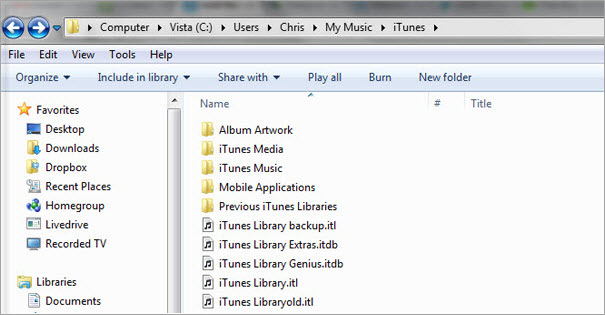
Locate iTunes Media folder on your Windows computer by clicking Users > Username > My Music > iTunes.


How to Back up iTunes Library and Playlists to External Hard Drive:

Step 1Connect your hard drive to your Windows PC’s USB Port, and open the hard drive on your PC.

Step 2Locate and drag the iTunes Library and playlists folder, and drop it on the external hard drive now showing on your File Explorer.

After backing up your iTunes library on your hard drive, you can now disconnect it from your PC for safe keeping.
Solution 2: Export iTunes Library from PC to Mac Using Home Sharing

Home sharing is a good way to move your iTunes library and playlists from one computer to another. When you use Home Sharing network to download media files from iTunes Store, the files will automatically sync to all the computers on your Home Sharing network.

You can use Home Sharing to import up to 5 iTunes Libraries and Playlists from your Windows PC to your Mac computer. Here is how it works:

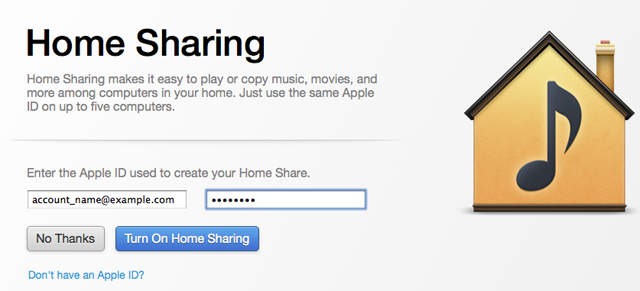
Step 1On the interface of iTunes, turn on Home Sharing by clicking File > Home Sharing > Turn on Home Sharing. Type your Apple ID and Password, then click Turn on Home Sharing.


Step 2From your Mac, choose a computer on your Home Sharing network where you want to import files from.

Step 3Choose a category (e.g. Music, Photos, etc.).

Step 4Choose "Items not in my library" from the menu appearing on your iTunes windows.


Step 5Select items you would like to import and click "Import".Sponsor ads:

Gihosoft Free iPhone Data Recovery:https://www.gihosoft.com/iphone-data-recovery-free.html

Gihosoft iPhone Data Recovery Free

Free iPhone Data Recovery Software for Windows/Mac

Recover up to 12+ types of files, including contacts, SMS, photos, WhatsApp, Viber, notes, etc.

Restore lost data from iOS devices directly or from iTunes and iCloud backup

Recover iPhone data lost due to iOS upgrade/jailbreak, accidental deletion, device lost or broken

Support all the latest iPhone, iPad and iPod Touch

Both Free and Pro version.

If you lost data after you updated to a new iPhone, you can always use Gihosoft iPhone Data Recovery to get the data back from the old iPhone or backup.You may also like: iphonerecovery.com

If you use android phones, please choose Gihosoft Android Data Recovery.

With Gihosoft Android Data Recovery, no longer afraid of data loss!

Must read:Youtube video downloader for pc

Gihosoft RePicvid Free Photo Recovery Software provides a free photo recovery software for windows to help users recover the deleted or lost photo for free.

Jihosoft Android Data Recovery: the best Android Data Recovery software for Windows and Mac to recover deleted contacts, messages, photos, videos, WhatsApp and etc from Android devices.Tips:How to transfer messages from iPhone to iPhone

jihosoft Free iPhone Data Recovery

Monday, 25 February 2019

Full Solutions to Fix iTunes Error 9006

Full Solutions to Fix iTunes Error 9006
1. Update iTunes


One more important thing all the iOS device users should remember is that the iTunes should always be updated. If you are coming across iTunes error 9006, perhaps your iTunes is old and not up-to-date. To check this:


Open your Mac or Windows PC and look for "iTunes" in the menu bar if you are using Mac. If you have Windows PC, go to "Help" in the menu bar.


Hunt for "Check for Updates".


If there will be an update available, a pop-up message will inform you. You need to agree and follow the prompts to get the latest iTunes version.
2. Try Another Computer


When you still get iTunes error 9006, you should switch to another computer having iTunes installed. Sometimes this works positively. Also, you can try the updating process using another Wi-Fi network as well. Check if now you are getting the error or not.
3 Use the Original USB Cable


USB cable can be a big issue for iTunes error 9006. Ensure using the authentic USB cable while updating the device. Isn't it strange, these errors can be removed by just keeping these kinds of trivial things in mind? To fix iTunes error 9006, please make sure that the genuine USB cable should be in your hands.


4. Put Your Device in DFU Mode & Restore with iTunes


The last tip for fixing iTunes error 9006 is to put the device in DFU mode and then restore it with the help of iTunes. If you meet the problem when restoring your device, you need try this method again. The steps involved are:


Start pressing and holding the "Power" button for approximately 3 seconds.


After 3 seconds, start pressing "Home" button also. Do this for 15 seconds and then release only "Power" button.


You will get a prompt that your device is ready to get connected to the iTunes.


When this is done, open iTunes in your PC and connect your iPhone to it.


Select your iPhone in iTunes. Click on "Summary" tab and go for "Restore iPhone" option.


The iPhone will restart after restoring and you are done now.


Conclusion


Go ahead and try these to get rid of the iTunes error 9006. When you try these troubleshooting steps, you will probably be able to update or restore your device without the problem. Also, we would to know how the process go on your side. Please share us the experience. Thanks for giving time reading this article.Also Read:Download Lynda Videos for Free


Also Read:Jihosoft HD Video Converter


Also Read:10 Best Party Planner Apps for your iPhone and iPad in 2019

Fix iPhone Cannot be Synced Error 2019


5 Common Ways to Fix iPhone Cannot be Synced Error
Fix 1: Update The Out-Dated Version of iTunes

If you are running an old and obsolete version of iTunes, updating it might eliminate this error. iTunes asks for your permission to update, when the update becomes available or you can manually download the updates and install them.


Fix 2: Get the Latest iOS Version of Your Apple Device

Outdated versions of the iOS might not be compatible with the latest version of iTunes. To resolve this compatibility issue, it is suggestible to do a software update. This is one of the leading causes of the error 54- iPhone cannot be synced because it cannot be found and a simple upgrade of your iOS software will fix it.


Fix 3: Permit Your Computer to Communicate with iTunes

If you want to sync your files, granting authorization to your computer to access iTunes content is essential. Without it, the synchronization process will end in failure. Open your iTunes software and locate the store category. There, you will have the option to authorize your computer. This will also eliminate many other iPhone errors that you might be encountering.
Fix 4: Modify Permissions in iTunes Settings

Configuring iTunes settings and granting permission to read and write can remedy this error. Here is how you can do this.

Go the music folder in my Computer and open the iTunes folder.

Right click on the iTunes icon and select properties. Untick the Read only option.
Fix 5: Free up Space on Your Apple Device

This error can also occur, if there your iPhone is running low on space. The error 54-‘’iPhone cannot be synced because it cannot be found’’ has a possibility of appearing if your storage space is low and you still try to sync heavy files and data to your device.Sponsor ads:Factory Reset Your iPad without Passcode or iTunesMust Read:If you lost data after you updated to a new iPhone, you can always use Gihosoft iPhone Data Recovery to get the data back from the old iPhone or backup.


You may also like:

Also Read:How to Fix Windows was Unable to Format SD Card/USB Drive
Also Read:What Is IDP.Generic and How to Fix Avast Infection Alert
Also Read:Top 5 Best Free File Recovery Software 2019 for Windows and Mac
Also Read:How to Recover Deleted Photos from Nikon DSLR (JPEG and NEF)
Also Read:Top 11 Sites to Download Paid Apps Free for Android, iPhone, Windows, Mac 2019

Fix "iTunes Purchases Not Showing Up On iPhone" 2019


Tips to to Fix "iTunes Purchases Not Showing Up On iPhone"

Here are some of the things that you can do to make your purchases show up on your iPhone again:
Tip 1. Restart the App

Try restarting the specific app that is playing your purchased media. For example, if it’s music, try restarting the Music app and see if the song shows up.
Tip 2. Restart Your iPhone

Do a hard restart so that all of your apps and processes have to start all over again. Many times this fixes the issue.
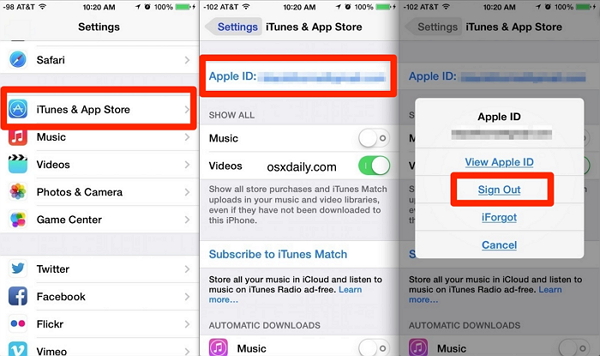
Tip 3. Sign out and Sign in Apple ID

Just like restarting your iPhone, signing in and out Apple ID can sometimes fix annoying software issues. This might also cause your iPhone to check to see if you have any new purchases when you sign back in.


Tip 4. Transfer Purchases from iTunes to iPhone

If the above tips still cannot fix the issue “iTunes purchases not showing up”, you’d better download the purchases on your iTunes computer. Then transfer them from iTunes library to your iPhone. In that case, there are two main ways that you can do it:
4.1 Transfer Purchases to iPhone Using iTunes

Step 1: Launch iTunes on computer and wait for everything to load.

Step 2: Plug your iPhone into your computer and wait for it to show up as a device in iTunes.

Step 3: Click on your device in iTunes so that you can see the Summary section.

Step 4: On the left sidebar, tap the media type that you want to transfer, like Music.

Step 5: Check “Sync Music” and check the purchased music you want to transfer to iPhone

Step 6: Tap Apple to sync the iTunes music to iPhone.Sponsor ads:How to Fix “The action can’t be completed because…”

Gihosoft Free iPhone Data Recovery:iphonerecovery.com

If you use android phones, please choose Gihosoft Android Data Recovery
Sponsor ads:10 Best Two Player Games for iPhone and iPad to play Challenges with Your Friends


Disadvantages of Using iTunes Sync:


The existing music library will be overwritten when you sync music. That means you will lose all your iPhone music.


You can sync your iPhone to one iTunes library meanwhile, or your iPhone will be erased.

4 Smart Lighting Solutions Will Make Your Life Easier [Deals Hub]

Ready to make your home a smarter and brighter place? These smart light options are ready to take your space into the 21st century and th...